Open volume splitKeep the running numberDownload the volumes
Volume split
Use it when
Open Tools, then Split volumes. The portal will not take a book that is over its page limit, so the book has to be split before you upload it.
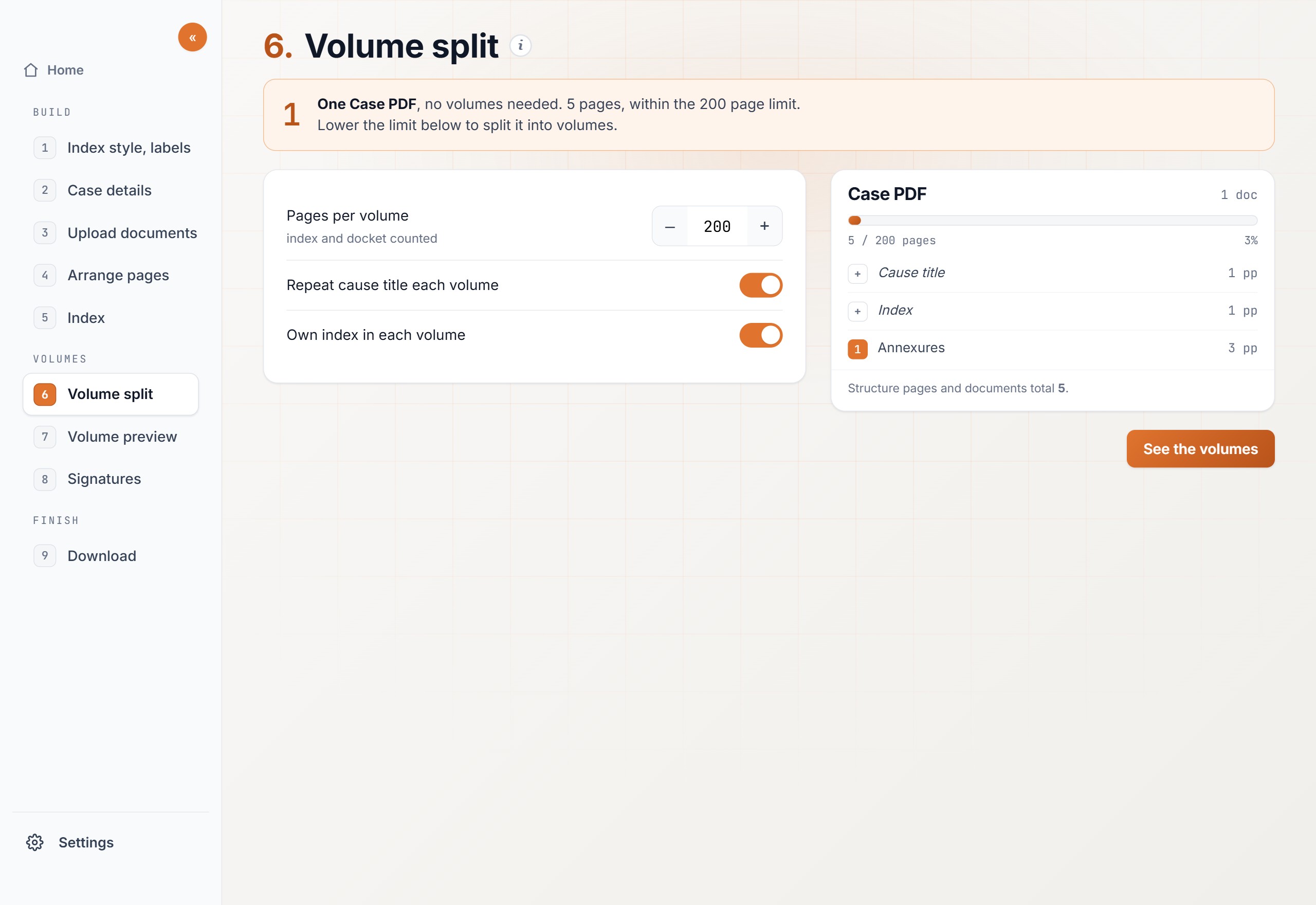
The e-filing size limit is a page count.Set pages per volume to that limit. Case PDF counts the index pages as well as the papers.
Each volume needs an index.The first volume can carry the master index. Turn on an index inside each later volume when the portal asks for one.
Steps
01
Upload the PDFOpen Tools, then Split volumes. Upload the compilation that has to be split. You can add more files and set their order before you continue.
02
Choose the index styleClick “Continue to index setup”. Choose the printed table, the annexure labels, and the page format.
03
Add the case detailsClick “Continue to case details”. The cause title prints at the top of the index.
04
Build the indexScroll the book. Press “+ Add to index” where a section begins, then name it. Click “Continue to split volumes” when the index is complete.
05
Set the page limitSet pages per volume to the e-filing size limit. The screen shows how many volumes that makes, and how full each one is. Turn on “Own index in each volume” if every volume needs its own index.
06
DownloadClick “Continue to download”, then “Download volumes”. If the book fits the limit, you get one PDF. If it does not, you get one PDF for each volume.
Expected output
Each download is a PDF that stays within the page limit you set. Volume 1 carries the master index. A later volume carries the pages that fit, and its own index when you turned that on.
The file names add “Vol 1”, “Vol 2”, and so on, unless you change the name first. Page numbers follow the whole book, so a page in Volume 2 keeps the number it had in the full paper book.